
Applies to: Admins
When your brand connects a support platform to Endear, your customers' support tickets sync into Endear. Staff members can see what a customer has contacted your support team about, whether the issue is still open, and the full conversation, all without leaving Endear. This context helps staff reach out at the right time and write more personal, relevant messages.
Note: The Data tab is no longer in the main navigation. Support tickets are now under Settings > Integrations and Data.
Overview
Connect a supported support platform to Endear (Zendesk, Gorgias or Kustomer).
Select Settings, then select Integrations and Data.
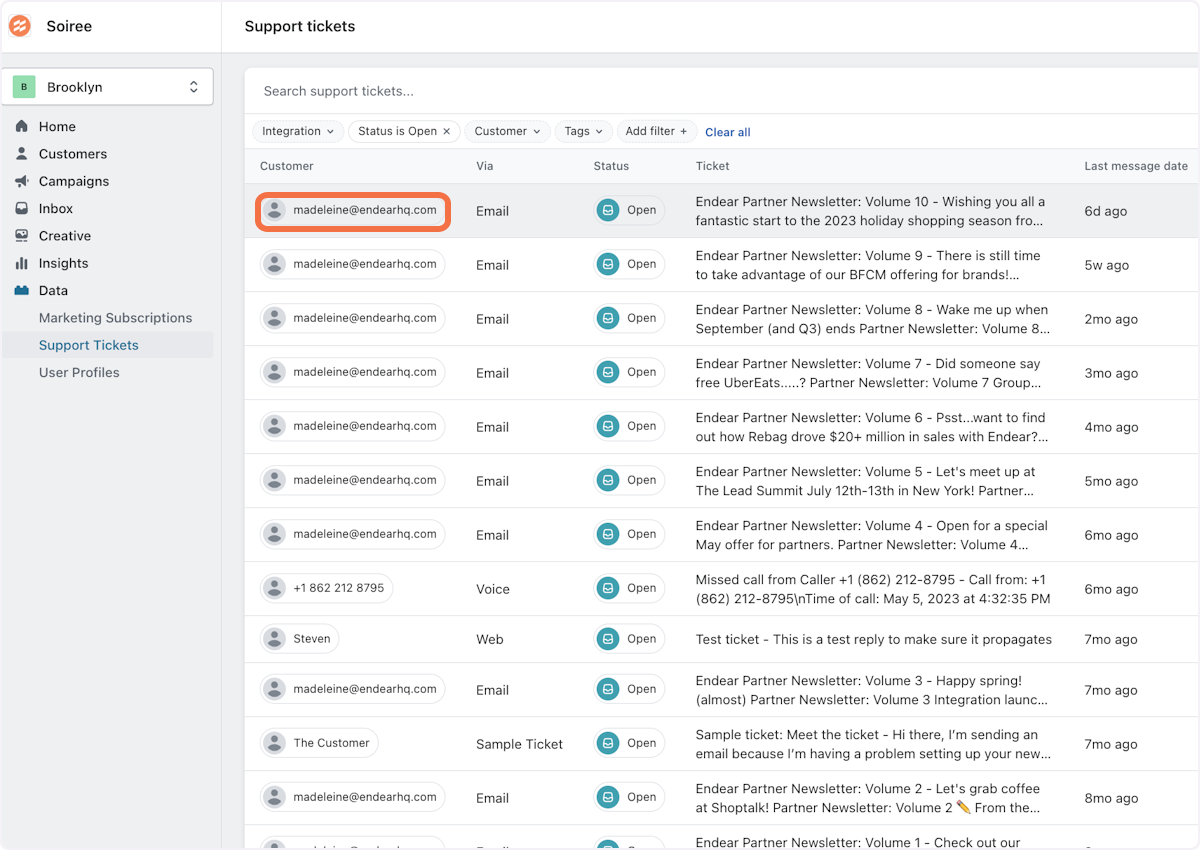
Select Support tickets to see all synced tickets.
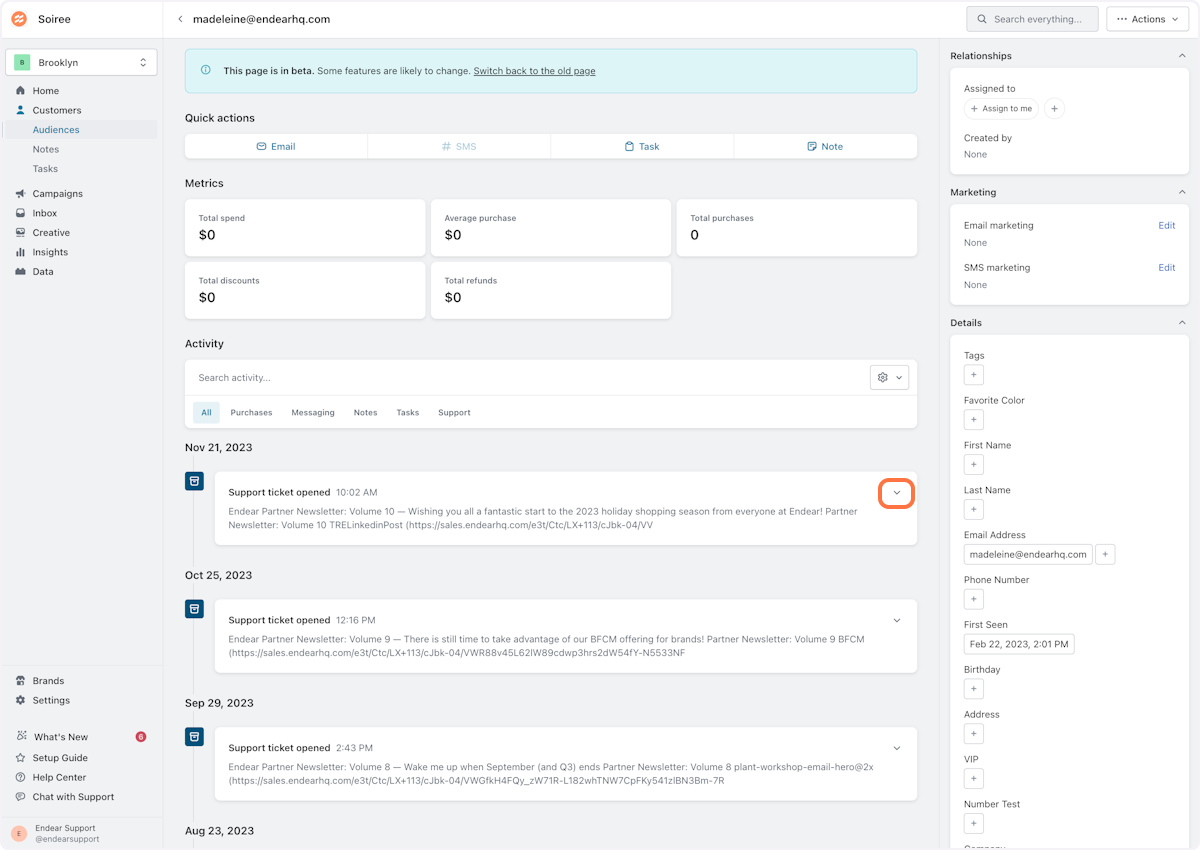
Search or filter to find a customer's ticket, then select the Down Arrow to view the full ticket.
What syncs from your support platform
Each ticket in Endear shows the customer it belongs to, the ticket status (Open, Snoozed or Closed), its tags, key dates and the conversation history between the customer and your support team. Tickets are matched to existing customer profiles in Endear.
Supported support platforms:
After you first connect a support platform, it can take up to 24 hours for all tickets to appear in Endear.
Step-by-step guide
1. Select Settings, then select Integrations and Data.

2. Select Support tickets. This opens a list of every ticket synced from your connected support platforms.

3. Find the ticket you want to view by searching for the customer or using the filters described below, then select the customer's ticket.
4. Select the Down Arrow next to the ticket to expand it and read the full conversation.
How to filter support tickets
Use the search bar to find a specific ticket, or narrow the list with filters:
Customer
Integration (the support platform the ticket came from)
Status (Open, Snoozed or Closed)
Tags
Marked as spam
Last message date, closed date, snoozed until date, create date and updated date
Deleted
Other places support tickets appear
Customer profiles: A customer's support tickets also appear on their customer profile, so staff members can review recent issues before reaching out.
Campaign suppression: If you use Gorgias, you can exclude customers who were recently contacted through Gorgias using the suppression rules in your campaign settings. This helps you avoid sending marketing messages to customers who are in the middle of a support issue.
Still Need Help?
We are happy to assist you for more 1:1 direction. Reach out to our live chat!